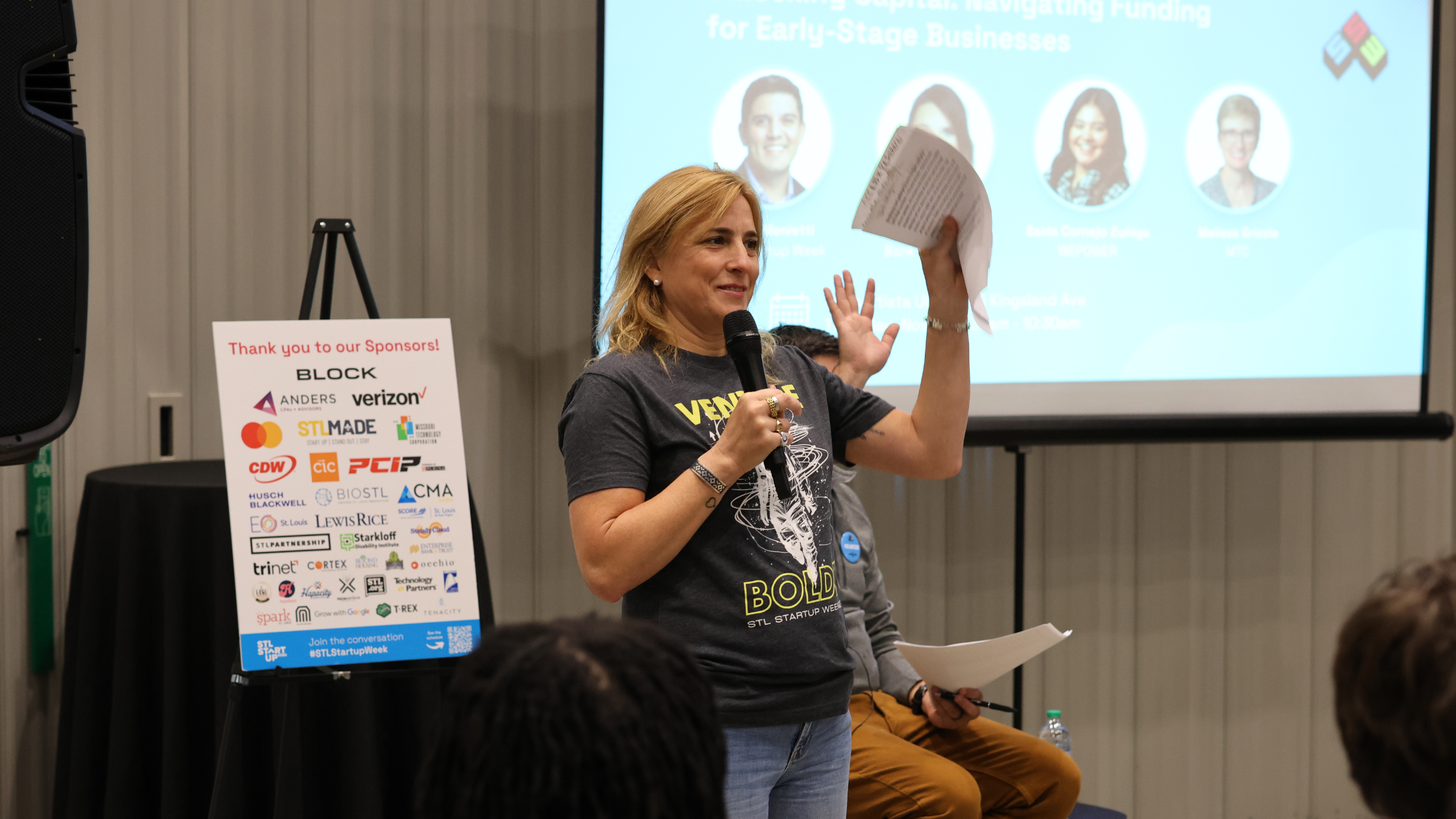

STL Startup Week is right around the corner! To make the most of your experience, we’re using Whova — an all-in-one event platform where you can explore sessions, connect with other attendees, and build your personalized agenda.
Here’s how to get started.
Step 1: Register for STL Startup Week
All STL Startup Week events are free, but registration is required.
- Visit the STL Startup Week 2025 Registration Page.
- Sign up with your name, email, and organization. Use the same email you’ll later use for Whova.
- We’ll also ask a few short questions about your industry, company, and stage of business. This helps us better understand who’s attending, measure our impact, and shape future programming to serve the community even better.
- All responses are used internally and shared only in aggregate — never individually — to help us continuously improve the STL Startup Week experience.
- After registering, you’ll receive a confirmation email with details on how to access the event in Whova.
Once you’ve registered, you’re ready to dive into the Whova platform.
Step 2: Download or Access Whova
You can use Whova on mobile or desktop, depending on your preference.
On Mobile (Recommended):
- Download the Whova App from the App Store (iOS) or Google Play (Android).
- Open the app and sign in using the same email you used for STL Startup Week registration.
- If you don’t have an account yet, tap “Sign up” and create a password.
- Search for “STL Startup Week 2025” and tap Join.
On Desktop:
- Go to our Whova web portal (we’ll share this link soon).
- Log in or sign up with your event email.
- Once inside, you’ll see the STL Startup Week home screen and can start browsing sessions.
Need a visual guide? Check out Whova’s quick video tutorial for attendees:
👉 Watch the Whova Attendee Guide
Step 3: Build Your Personalized Schedule
With Whova, you can view the full event agenda, explore session descriptions, and add events to your personal calendar.
On Mobile:
- Tap Agenda at the bottom of your screen.
- Browse each day or use filters to find topics that interest you.
- Tap a session for more details and hit “Add to My Agenda.”
- Whova will automatically send reminders for sessions you’ve saved.
On Desktop:
- Click Agenda in the left-hand menu.
- Browse by day, topic, or track.
- Select “Add to My Agenda.”
Step 4: Connect, Network, and Explore
Whova isn’t just about sessions — it’s where the STL startup community comes alive.
- Connect with other attendees: Visit the Attendees tab to meet founders, supporters, and partners.
- Join the conversation: Use the Community Board to share resources, post questions, or arrange meetups.
- Participate in Q&A and polls: Engage with speakers directly through the app during sessions.
Step 5: Show Up, Learn, and Have Fun
Once you’ve built your schedule, you’re ready for the week!
Whova makes it easy to see where you need to be, get session updates, and discover bonus opportunities throughout the event.
For the best experience, set up your Whova profile early and download the app ahead of time.
Still need help?
Visit Whova’s full guide for attendees: https://whova.com/pages/whova-app-user-guide/